
Overview of the Academic Year Report
Administration > Manage Academic Years
The Academic Year is your organization's academic fiscal year period. The Manage Academic Years allows you to set the start date and the end date of that period, as well as define what you call the period. (I.e. 2020/2021 or just 2020).
Each application form and funding source is tied to an academic year period. This helps you determine the period of awarding for your funding source and who applied for funding within that academic period.
The Academic Year listing enables an admin to edit existing and add new academic year definitions as well as export the list of academic years to Excel.
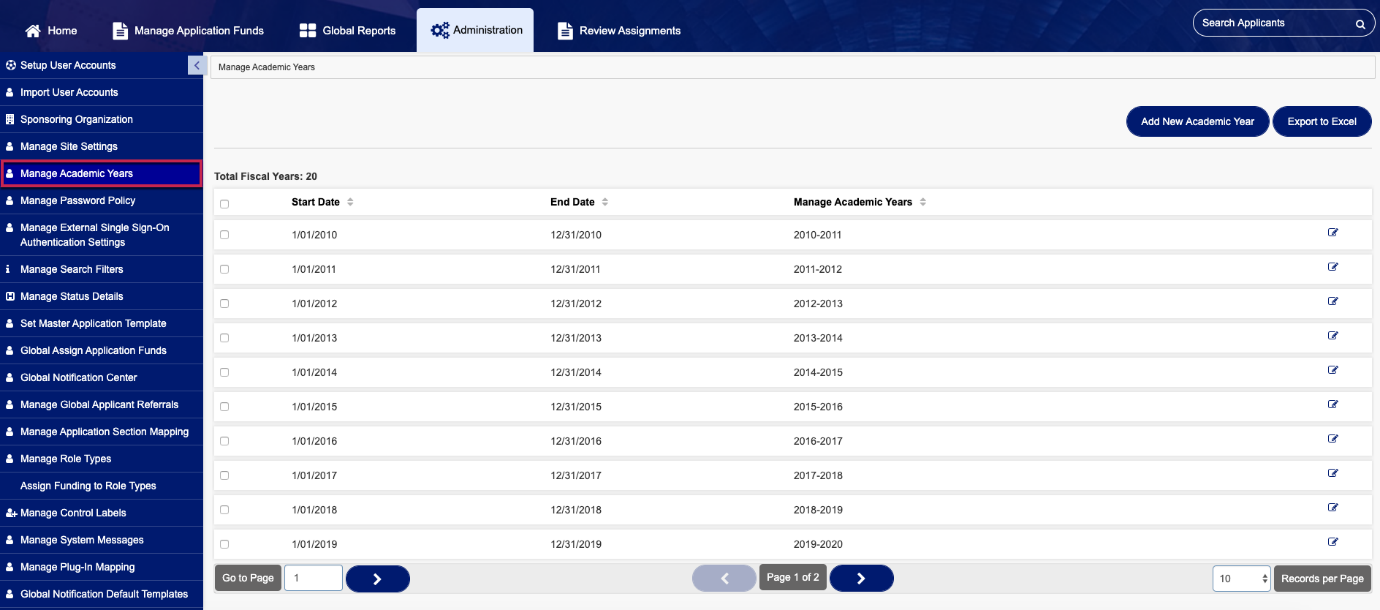
Academic Years Report Fields
Start Date: The Start Date should equal the first day of the fiscal year.
End Date: The End Date should equal the last day of the fiscal year.
Manage Academic Year: The academic year range.
Additional Notes about the Academic Years Report
- The Total number of Fiscal Years (Academic Years) displays on the left above the report.
- The report sort order can be changed by clicking the up/down arrow symbol next to the heading in any column.
- Click the Add New Academic Year button to create a new academic year. Please see the Add New Academic Year article for more details.
- Click the Export to Excel button to download a file containing selected or all academic years. Please see the Export Reports to Excel article for details on how to make changes.
- Click the Edit (pencil) icon to make changes to a specific academic year. Please see the Edit an Existing Academic Year article for details on how to make changes.
- Use the navigational tools located below the report to move through the pages or change the number of records displayed per page.